Convert TIFF to PDF Online Free
This tool converts TIFF images to PDF format. It supports single and multi-page TIFF files (TIFF with multiple images/frames).
✅ Works best for: Scanned documents, fax images, high-quality photographs, and multi-page TIFF archives
⚠️ For very large TIFF files (100MB+), consider splitting before conversion
Click to Upload TIFF File or drag and drop here
Support for single and multi-page TIFF files
👁️ TIFF Pages Preview
Upload a TIFF file to preview pages...
📄 PDF Preview Ready to Download
PDF preview will appear here after conversion
✅ 100% Private & Secure: All conversion happens in your browser. Your TIFF images are never uploaded to any server.
How to Convert TIFF to PDF
Converting TIFF images to PDF format takes just four simple steps.
Step 1: Upload Your TIFF File
Click the upload area or drag and drop your TIFF/TIF file. We support both single and multi-page TIFF files.
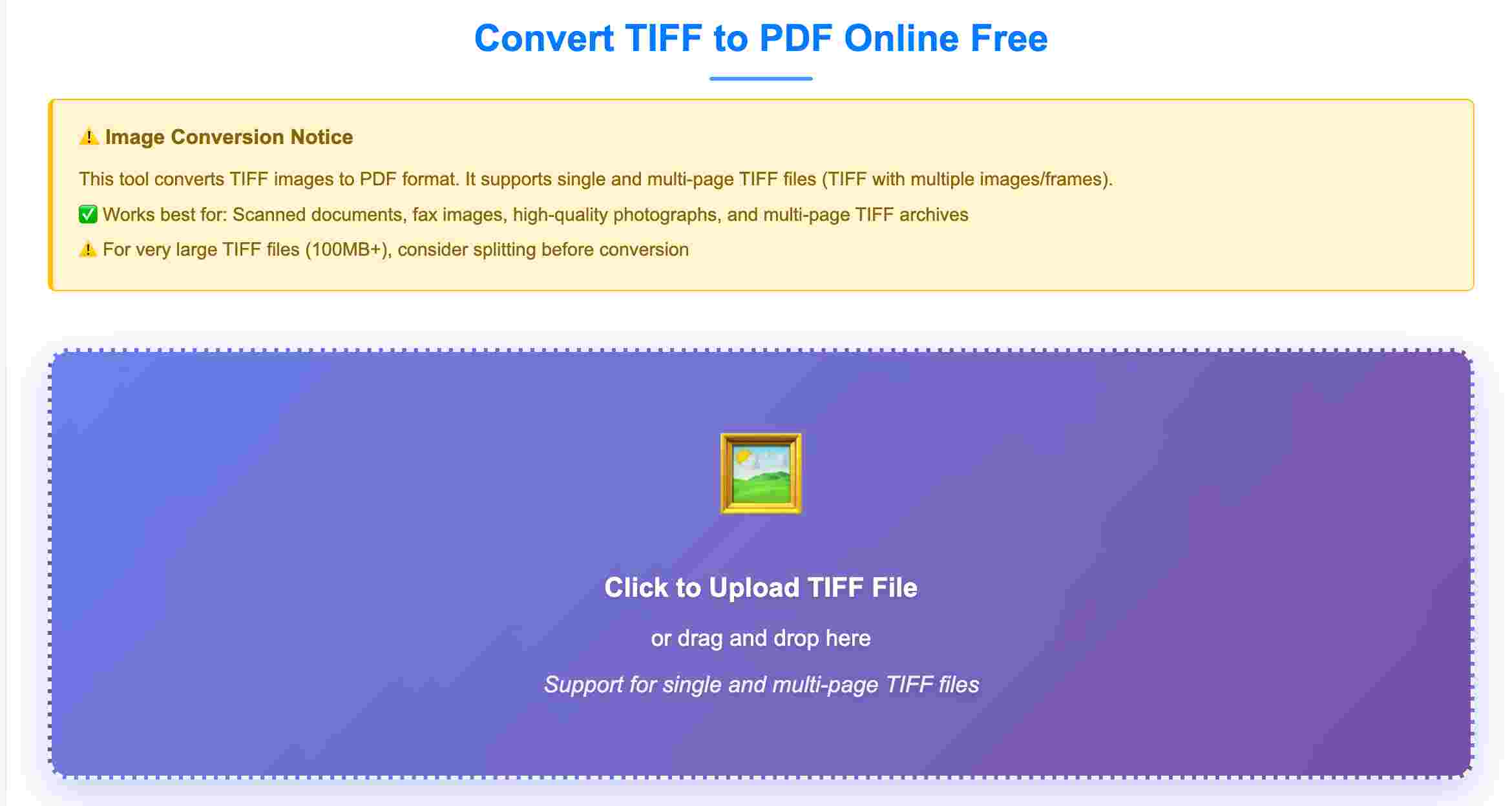
Step 2: Preview TIFF Pages
Review all pages in your TIFF file. Multi-page TIFFs will show all frames/pages in the preview panel.
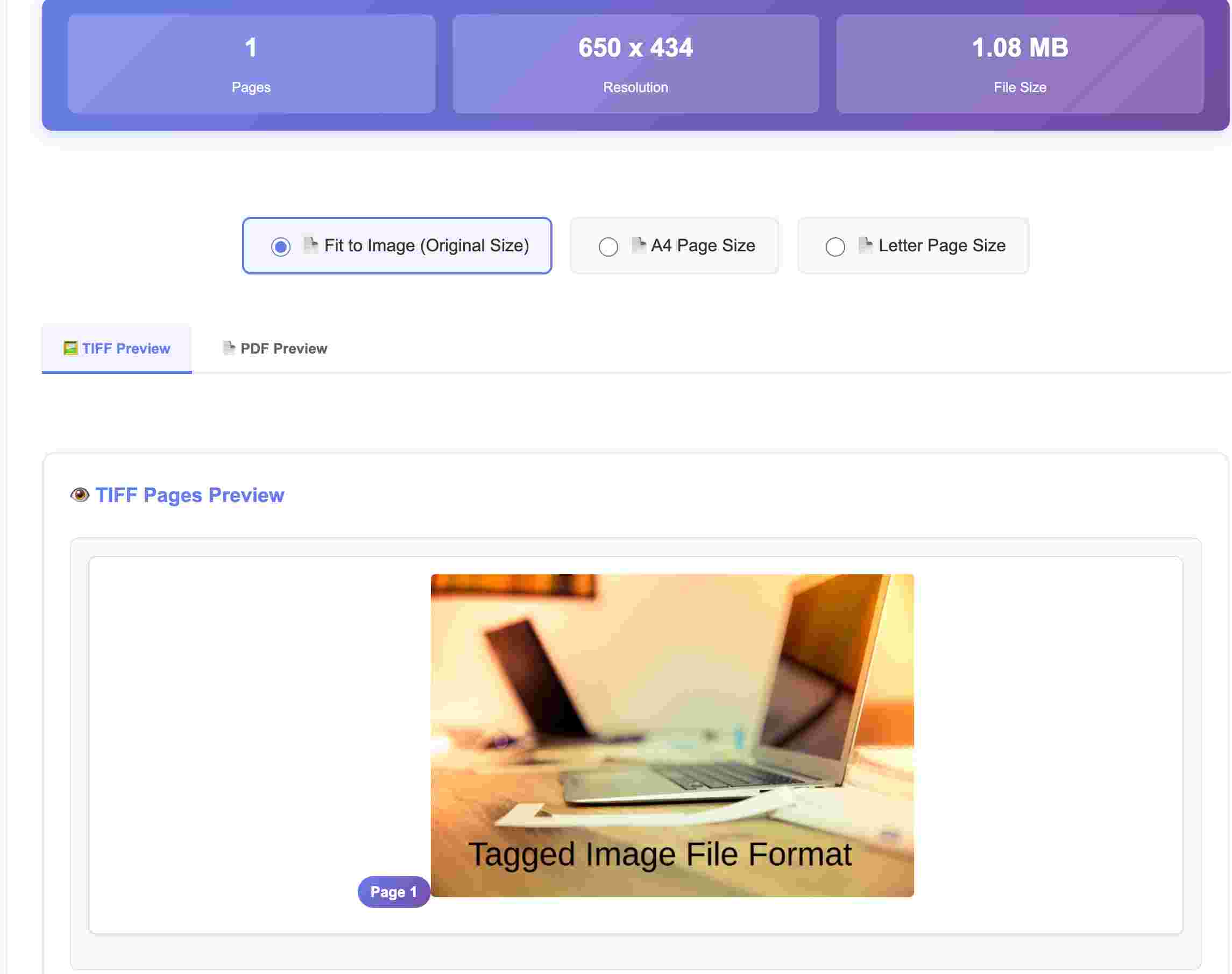
Step 3: Select PDF Page Size
Choose between original image size, A4, or Letter page size for your output PDF.

Step 4: Convert into PDF
Click "Convert to PDF" and your file will be processed instantly. And the PDF file preview will show.

Step 5: Verify the preview of converted PDF file
After converting into PDF verify your PDF file preview and verify that download pdf button is enable for you.
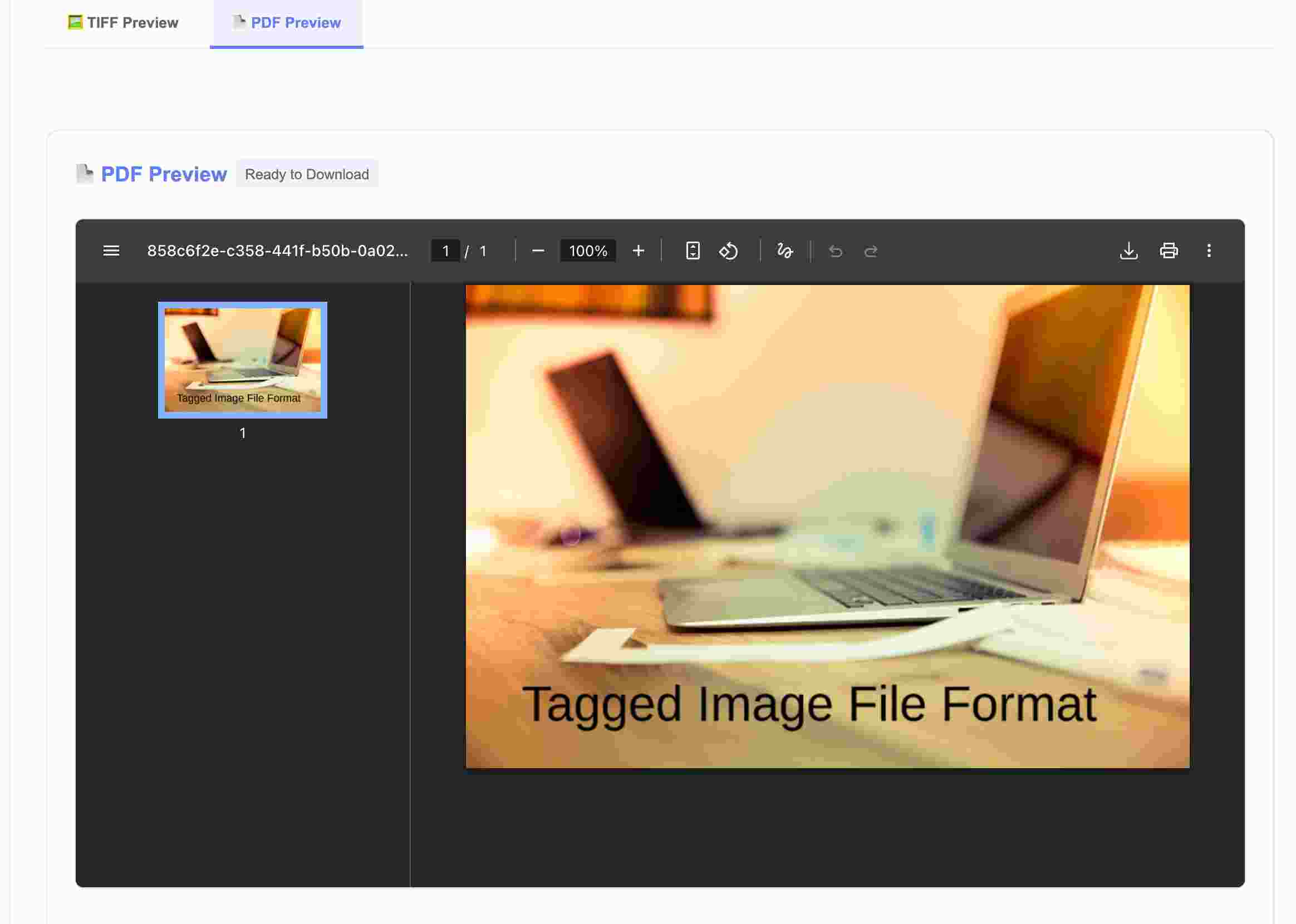
Step 6: Download the File
Click on Download PDF button to save your converted file.

Upload TIFF
Select your TIFF or TIF file from your computer.
Preview Pages
Review all pages in the preview panel.
Choose Size
Select PDF page size (Original, A4, or Letter).
Download PDF
Convert and download your PDF file.
✨ Why Convert TIFF to PDF?
TIFF files are excellent for high-quality image storage and professional printing, but they're often too large for email and not universally viewable. PDF format compresses the images while maintaining quality, makes them viewable on any device without special software, and allows you to merge multiple TIFF pages into a single, easy-to-share document perfect for archiving, emailing, and printing.
Email Sharing
Convert large TIFF files to compressed PDF for easy email attachments.
Document Archiving
Merge multi-page TIFF scans into single PDF documents for better organization.
Universal Printing
PDF files print consistently across all printers and operating systems.
Mobile Viewing
View converted documents on phones and tablets without TIFF viewers.
Secure Storage
Convert confidential scanned documents to PDF without uploading to servers.
File Compression
Reduce file size while maintaining image quality for easier storage.
Why Use This TIFF to PDF Converter?
- Multi-Page Support: Handles single and multi-page TIFF files (TIFF with multiple IFDs/frames).
- High Quality: Maintains image resolution and quality during conversion.
- Page Size Options: Choose original image size, A4, or Letter format.
- Universal Compatibility: PDF files open on any device without TIFF viewers.
- Compression: Reduces file size compared to uncompressed TIFF.
- No Software Required: Works entirely in your browser — no Photoshop or GIMP needed.
- Complete Privacy: Your images are never uploaded anywhere. All processing happens locally.
- Free Forever: No file size limits, no page restrictions, no watermarks.
- Cross-Platform: Works on Windows, Mac, Linux, Android, iOS.
- Fast Processing: Instant conversion powered by browser-native JavaScript.
- Fax Compatible: Perfect for converting fax TIFF files to PDF.
- Scanned Documents: Ideal for scanned document archives in TIFF format.
TIFF to PDF Converter – Complete Guide
Converting TIFF (Tagged Image File Format) images to PDF is a common requirement in professional document workflows. While TIFF has been the gold standard for high-quality image storage in industries like printing, scanning, and medical imaging, PDF has become the universal standard for document exchange. This comprehensive guide explains what TIFF and PDF formats are, why you might need to convert between them, how the conversion process works technically, and what to expect from browser-based conversion tools.
What Is TIFF and Why Convert to PDF?
TIFF (Tagged Image File Format) is a flexible, high-quality image format developed by Aldus and Microsoft in the 1980s. It's an open standard that supports multiple compression schemes (LZW, ZIP, JPEG, CCITT Group 4) and can store multiple images (pages) within a single file. TIFF is widely used for:
- Professional photography and high-resolution scanning
- Document imaging and archiving (fax, medical records)
- Print production and pre-press workflows
- Geographic Information Systems (GIS) and satellite imagery
- Multi-page document scanning
PDF (Portable Document Format), developed by Adobe, is a file format designed to present documents consistently across all devices and platforms. While TIFF excels at storing raw image data, PDF offers significant advantages for document distribution and viewing.
Converting TIFF to PDF makes sense in several scenarios:
- Universal Accessibility: PDF files can be opened on virtually any device without specialized TIFF viewing software.
- Email Distribution: TIFF files are often blocked by email servers due to large file sizes; PDFs are universally accepted.
- File Compression: PDFs use efficient compression, often resulting in smaller files than uncompressed TIFFs while maintaining quality.
- Multi-Page Documents: While TIFF supports multiple pages, PDF is the standard format for multi-page documents and is more widely supported.
- Text Searchability: PDFs can contain searchable text layers (when combined with OCR), whereas TIFFs are pure images.
- Security: PDFs support encryption, password protection, and access controls that TIFFs lack.
- Mobile Viewing: Smartphones and tablets have native PDF support; TIFF viewers are less common.
How TIFF to PDF Conversion Works (Browser-Based)
Converting TIFF to PDF in a browser involves decoding the TIFF image data and embedding it into a PDF container. Here's the technical process:
- File Loading: The TIFF file is loaded into browser memory using the File API as an ArrayBuffer.
- TIFF Parsing: The TIFF.js library parses the TIFF header and Image File Directories (IFDs) to identify:
- Image dimensions (width, height)
- Color depth and photometric interpretation
- Compression scheme used (LZW, ZIP, JPEG, uncompressed)
- Number of pages/frames (for multi-page TIFFs)
- Image Decoding: For each page in the TIFF:
- Compressed image data is decompressed using the appropriate algorithm
- Raw pixel data is extracted and converted to RGBA format
- Color space transformations are applied (CMYK to RGB, grayscale, etc.)
- Canvas Rendering: The decoded image data is rendered to an HTML5 Canvas element for display and further processing.
- PDF Generation: jsPDF creates a new PDF document and:
- Sets page dimensions based on user selection (original size, A4, or Letter)
- Embeds the image data as a PNG or JPEG stream
- Positions the image on the page (centered or fitted to page)
- Adds each TIFF page as a new PDF page for multi-page files
- Output: The generated PDF is offered as a downloadable file or Blob URL for preview.
Important Technical Notes: Browser-based conversion handles most standard TIFF formats (uncompressed, LZW, ZIP, JPEG compression). However, certain specialized TIFF variants may have limited support: - BigTIFF files (>4GB) are not supported - Some proprietary TIFF extensions may not decode properly - CMYK color space is converted to RGB for PDF compatibility - Extremely high bit-depth images (>16-bit) may be downsampled
What Converts Successfully vs. What Doesn't
Successfully Converted
- ✅ Standard TIFF Files: Uncompressed, LZW, ZIP, and JPEG-compressed TIFFs
- ✅ Multi-Page TIFFs: All pages/frames extracted and converted to PDF pages
- ✅ Grayscale Images: Black and white and grayscale TIFFs convert perfectly
- ✅ RGB Color Images: Full-color photographs maintain quality
- ✅ Fax TIFFs (G4): CCITT Group 4 compressed fax images
- ✅ High Resolution: Images up to 300-600 DPI maintained in output
- ✅ Transparency: Alpha channels preserved (converted to PDF transparency)
Limited or Not Supported
- ⚠️ CMYK Color Space: Converted to RGB (may cause slight color shifts in print production)
- ⚠️ TIFF Metadata: EXIF data, ICC profiles, and technical metadata are not preserved in PDF
- ⚠️ Layers: Multi-layer TIFFs are flattened to single images
- ❌ BigTIFF: TIFF files larger than 4GB are not supported
- ❌ Proprietary Extensions: Some Adobe or vendor-specific TIFF variants may fail
- ❌ TIFF-FX: Specialized fax formats (used in internet fax) have limited support
- ❌ GeoTIFF: Geographic metadata embedded in TIFFs for GIS applications is stripped
- ❌ OPI Comments: Open Prepress Interface comments used in publishing are not preserved
Single-Page vs. Multi-Page TIFF Files
This is a critical distinction in TIFF format:
- Single-Page TIFFs: Contain one image. Common for photographs and individual scans. This tool converts them to single-page PDFs.
- Multi-Page TIFFs: Contain multiple images (frames) in one file, similar to a PDF. Common for:
- Document scanning (multi-page contracts, forms)
- Fax transmissions
- Medical imaging (DICOM often wrapped in TIFF)
- Animation sequences
How Our Tool Handles Multi-Page TIFFs: The converter automatically detects all Image File Directories (IFDs) in the TIFF and extracts each as a separate page. The resulting PDF maintains the page sequence from the original TIFF file.
Use Cases and Real-World Applications
Document Management and Scanning
- Archive Conversion: Convert legacy TIFF document archives to PDF for modern document management systems
- Scanner Output: Many document scanners output multi-page TIFFs; convert to PDF for email distribution
- Batch Processing: Convert folders of TIFF scans to PDFs for consistent filing
- OCR Preparation: Convert TIFFs to PDF before running OCR to make text searchable
Medical and Healthcare
- Medical Imaging: Convert TIFF-based medical scans to PDF for inclusion in electronic health records (EHRs)
- Dental X-Rays: Many dental imaging systems export TIFFs; PDFs are easier to share with patients
- Pathology Slides: High-resolution TIFF microscope images converted to PDF for reports
Print and Publishing
- Pre-press Workflows: Convert TIFF proofs to PDF for client review (note: CMYK conversion may apply)
- Image Archives: Magazine and newspaper photo archives in TIFF format converted to PDF portfolios
- Photo Proofing: Wedding and event photographers converting TIFF masters to client PDF proofs
Engineering and GIS
- Map Conversion: TIFF maps and satellite imagery converted to PDF for portability (GeoTIFF metadata not preserved)
- CAD Drawings: Engineering drawings saved as TIFF converted to PDF for universal viewing
- Survey Documents: Land survey TIFF images converted to PDF for permit applications
Comparison: TIFF to PDF Conversion Methods
| Method | Quality Preservation | Ease of Use | Privacy | Cost |
|---|---|---|---|---|
| Browser Tool (This) | High (RGB conversion) | ✓ No install needed | ✓ Files stay local | ✓ Free |
| Adobe Acrobat Pro | ✓ Excellent (color profiles) | ✓ Easy | Cloud processing (files uploaded) | Paid subscription |
| ImageMagick | ✓ Excellent | Command line / technical | ✓ Local processing | ✓ Free (open source) |
| Windows Photos App | Basic (no compression control) | ✓ Built-in | ✓ Local | ✓ Free |
| Online Upload Converters | Good to Excellent | ✓ Easy | File uploaded to server (privacy risk) | Free with limits / Paid |
Recommendation: For quick conversions without software installation, this browser tool is perfect. For professional print workflows requiring exact color management (CMYK preservation), use Adobe Acrobat Pro or ImageMagick. For maximum privacy with sensitive documents (medical, legal), browser-based tools like this one are actually preferable to online upload services.
Browser Compatibility and Technical Requirements
This TIFF to PDF converter works in all modern web browsers that support:
- TIFF.js: JavaScript TIFF decoder library (all modern browsers)
- HTML5 Canvas: For image rendering and manipulation
- File API: For local file reading without server upload
- jsPDF: For PDF generation (supported in all modern browsers)
- Typed Arrays: For handling binary image data efficiently
- JavaScript ES6: All browsers released after 2017
Supported Browsers:
- ✅ Chrome/Edge 60+
- ✅ Firefox 55+
- ✅ Safari 11+
- ✅ Opera 47+
- ✅ Mobile Chrome (Android)
- ✅ Mobile Safari (iOS 11+)
Understanding TIFF Compression Methods
TIFF files use various compression schemes that affect file size and conversion:
- Uncompressed: No compression, largest files, fastest conversion
- LZW (Lempel-Ziv-Welch): Lossless compression, common in scanned documents, well supported
- ZIP (Deflate): Lossless compression, similar to PNG compression, well supported
- JPEG: Lossy compression for photographs, may show compression artifacts, supported
- CCITT Group 3/4: Fax compression for black and white documents, well supported
- PackBits: Simple compression scheme for Macintosh, supported
Our converter handles all standard compression methods. JPEG-compressed TIFFs will maintain their existing compression quality in the PDF.
Security and Privacy Considerations
When converting sensitive images — such as medical scans, legal documents, or proprietary photographs — privacy is paramount:
- Zero Network Transfer: Your TIFF file is read directly from your device into browser memory. It's never transmitted over the network to any server.
- No Server Storage: All image decoding and PDF generation happens in JavaScript in your browser. There's no server database storing your images.
- No Third-Party Access: Your image content is never sent to any third-party analytics service, cloud storage, or external API.
- Session Isolation: All image data is held in browser memory (RAM) only during your active session. Closing the browser tab immediately clears everything from memory.
- Safe for HIPAA/GDPR: Convert medical images (X-rays, MRIs) or legal documents without data leaving your device, maintaining compliance with privacy regulations.
Troubleshooting Common Issues
Problem: TIFF won't upload or shows "Failed to decode"
Solution: Ensure the file is a valid TIFF (check extension is .tif or .tiff). Try opening the file in an image viewer to verify it's not corrupted. If the TIFF uses an unusual compression scheme or is a BigTIFF (>4GB), it may not be supported.
Problem: Colors look different in PDF (color shift)
Explanation: Your TIFF likely uses CMYK color space (common in print production), but the browser converts it to RGB for display and PDF generation. Solution: For critical color accuracy, use Adobe Acrobat Pro which preserves CMYK color profiles, or convert to PDF using professional pre-press software.
Problem: Multi-page TIFF only shows first page
Explanation: Some TIFF viewers handle multi-page differently. Solution: Our tool should detect all pages. If not, the TIFF may use a non-standard multi-page structure. Try using ImageMagick to convert first: convert input.tif output.pdf
Problem: PDF file is larger than original TIFF
Explanation: This can happen if the TIFF was highly compressed (JPEG compression) and the PDF is using lossless compression. Solution: This is normal for quality preservation. If file size is critical, use an online compressor after conversion, or adjust PDF compression settings in desktop software.
Problem: Very slow conversion on large files
Explanation: Large TIFF files (high resolution, many pages) require significant browser memory to decode. Solution: Be patient for files >50MB. For extremely large files, consider using desktop software like ImageMagick or splitting the TIFF into smaller files first.
Best Practices for Successful Conversion
- Verify File Integrity: Ensure your TIFF opens correctly in an image viewer before converting.
- Check Color Space: If color accuracy is critical, be aware of CMYK to RGB conversion.
- Select Appropriate Page Size: Use "Fit to Image" for photos, A4/Letter for documents that will be printed.
- Consider File Size: Uncompressed TIFFs can be huge; the PDF will also be large but more manageable.
- Preview Before Download: Always check the preview to ensure all pages converted correctly, especially for multi-page TIFFs.
- Maintain Originals: Keep your original TIFF files as masters; use PDFs for distribution and viewing.
Alternative: Using ImageMagick for Batch Conversion
For users comfortable with command line, ImageMagick offers powerful TIFF to PDF conversion:
# Single file conversion
convert input.tif output.pdf

# Multi-page TIFF to PDF (maintains pages)
convert input.tif output.pdf

# Batch convert all TIFFs in folder
for file in *.tif; do convert "$file" "${file%.tif}.pdf"; done

# With specific compression and quality
convert input.tif -compress zip -quality 100 output.pdf
ImageMagick preserves more metadata and offers finer control over compression, but requires software installation and technical knowledge. For quick, private conversions without installation, our browser tool is more convenient.
Related Tools
- JPG to PDF: Convert JPEG images to PDF format
- PNG to PDF: Convert PNG images with transparency to PDF
- Image to PDF: Universal converter supporting all image formats
- PDF Compressor: Reduce file size of converted PDFs
- PDF OCR: Make scanned PDFs searchable after conversion
Frequently Asked Technical Questions
Does converting TIFF to PDF reduce image quality?
No, not with our tool. The image data is embedded into the PDF without re-compression (lossless). However, if your TIFF uses CMYK color space, it will be converted to RGB which may appear slightly different on screen (though usually fine for printing).
Can I convert BigTIFF files (>4GB)?
No, browser-based tools have memory limitations that prevent processing files larger than approximately 500MB-1GB depending on your device. For BigTIFF files, use desktop software like ImageMagick or specialized TIFF tools.
Will transparency (alpha channel) be preserved?
Yes, if your TIFF has transparency, it will be preserved in the PDF. The transparent areas will remain transparent in the resulting PDF document.
Can I adjust the compression level in the output PDF?
Browser-based conversion uses standard PDF compression automatically. For specific compression settings (e.g., maximum compression for web, lossless for print), use desktop PDF software like Adobe Acrobat or PDFtk after conversion.
Why is my fax TIFF not displaying correctly?
Fax TIFFs often use CCITT Group 3 or 4 compression with specific encoding. While our tool supports these formats, some proprietary fax software may create non-standard TIFFs. Try using a dedicated fax viewer first to verify the file.
Frequently Asked Questions (FAQs)
Upload your TIFF or TIF file, preview the image pages, select your preferred PDF page size (Original, A4, or Letter), then click 'Convert to PDF' to download your file instantly.
Yes. Our converter automatically detects all pages/frames in multi-page TIFF files and converts them into a single multi-page PDF document.
No. All conversion happens entirely in your browser using JavaScript. Your image files are never uploaded to any server, ensuring complete privacy.
Yes. The converter maintains the original resolution and quality of your TIFF images. The PDF will contain the images at their original quality.
There is no artificial file size limit, but browser memory constraints apply. Most devices handle TIFF files up to 50-100MB. For very large files, consider splitting them first.
Currently, the tool converts one TIFF file at a time. If you have multiple files, convert them sequentially or use our batch Image to PDF converter tool.
Final Thoughts
Converting TIFF to PDF bridges the gap between professional image quality and universal accessibility. Whether you're working with scanned documents, fax files, or high-resolution photographs, this browser-based tool provides a secure, instant solution without compromising quality or privacy.
Upload your TIFF file above to start converting to PDF now!